Module 1: IP Intelligence (IPI)
The purpose of this lab is to show the how IP Intelligence is working.
Note
The Lab is already pre-build. Meaning, you can show/check and demo IP Intelligence without configuring anything.
Note
IP intelligence is a subscription sevice which has been licensed for the demo.
Demo IP Intelligence - pre-configured
Steps:
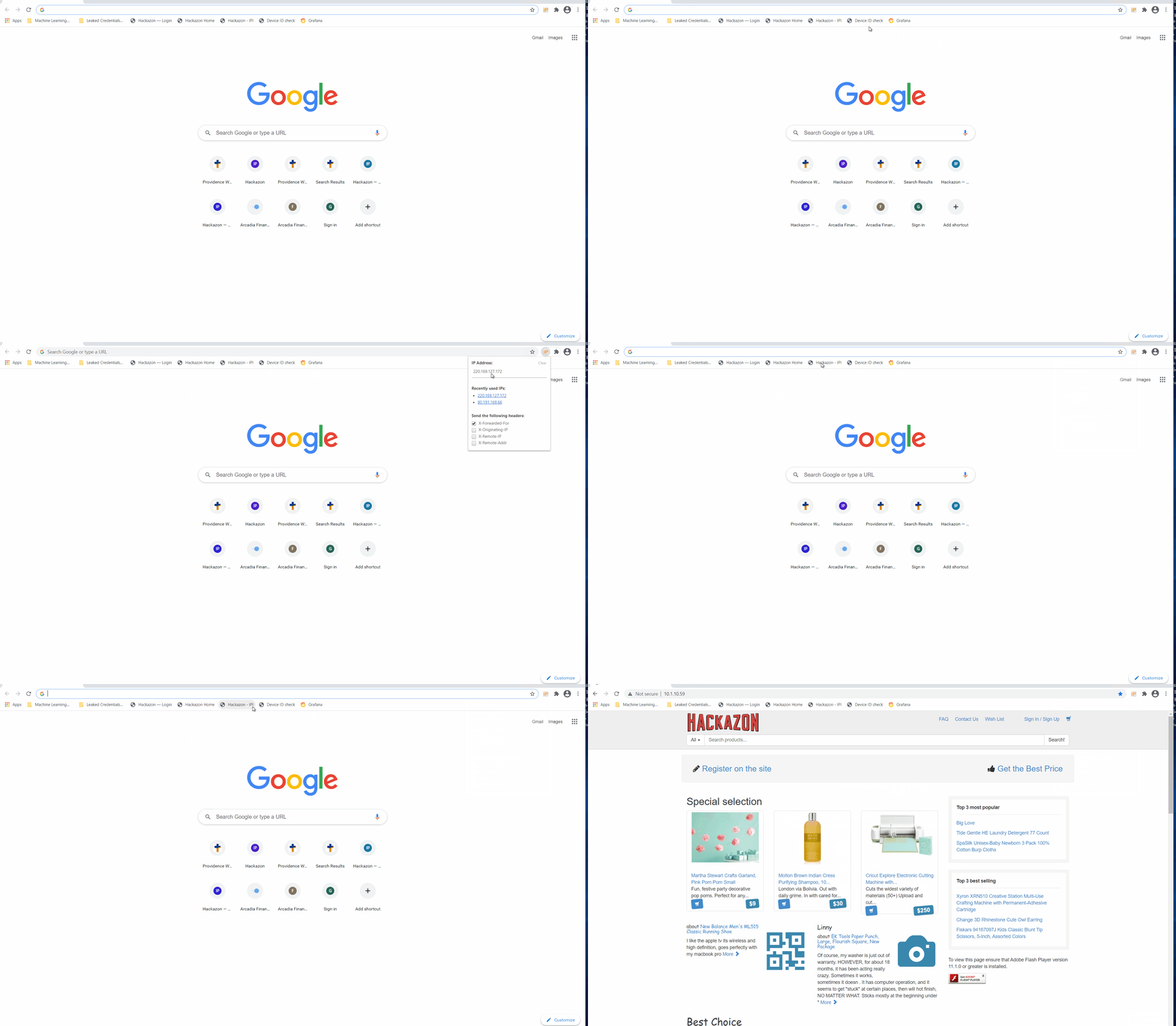
Connect to the Windows Client (win-client) via RDP (Select an appropriate screen resolution for your screen) ensuirng that you login with username/password as user/user.
Start Chrome and click on the Add-On called X-Forwarded-For Header.
Within here, you have already an IP configured which will trigger a IPI violation in the Event Logs of AWF.
If that IP has rotated out of the malicious DB, you can try one of these alternates:
80.191.169.66 - Spam Source
85.185.152.146 - Spam Source
220.169.127.172 - Scanner
222.74.73.202 - Scanner
62.149.29.36 - Spam Source
82.200.247.241 - Phishing
134.119.219.93 - Spam Source
218.17.228.102 - Spam Source
220.169.127.172 - Scanner
Exercise 1 – TASK 1 - Review IP Intelligence Log entries on Advanced WAF
Steps:
IP Intelligence is configured on BIG-IP named BIG-IP 16.1 - All Demos.
Login to BIG-IP via WebUI (The Password of the BIG-IP instance is listed within the Details / Documentation Tab).
Navigate to Security > Event Logs > Application > Requests and review the entries. You should see a Sev3 Alert for the attempted access to uri: /xff-test from a malicious IP.

Demo IP Intelligence - What has been configured
Navigate to Security > Application Security > Policy Building > Learning and Blocking Settings and expand the IP Addresses and Geolocations section.
Note
These are the settings that govern what happens when a violation occurs such as Alarm and Block. We will cover these concepts later in the lab but for now the policy is in blocking but within the IPI configuration is we enabled alarm only.
Navigate to Security › Application Security > Security Policies > Policies List.
Select the Security Policy named “Hackazon-WAF-IPI”. Within the “Policy Configuration” choose “IP Intelligence”.
Notice at the top right that IPI is “ON” and alarm is configured for each category.

For the demo to work, XFF inspection in the WAF policy is enabled via to Security > Application Security > Security Policies > Policies List > Hackazon-WAF-IPI.

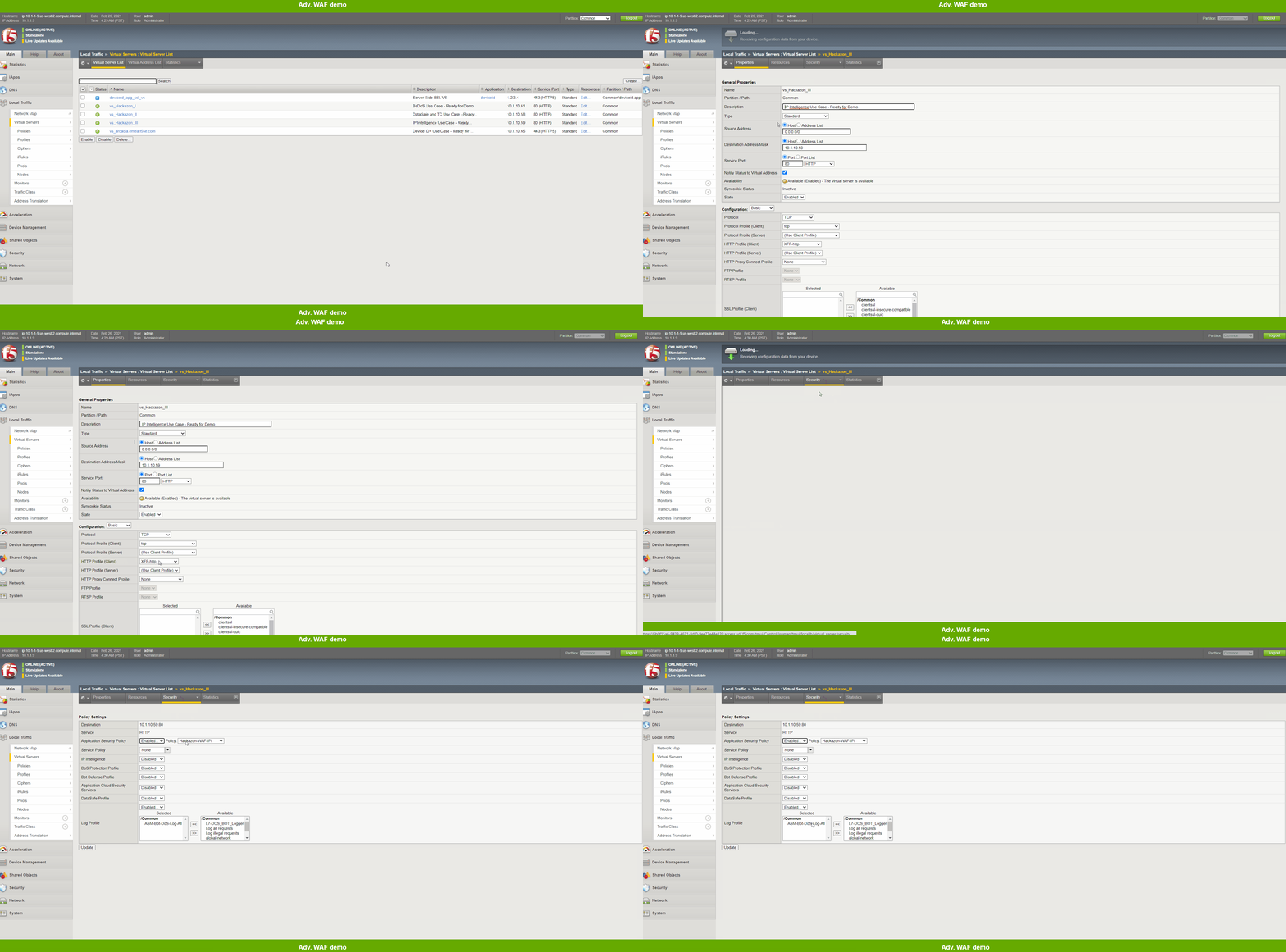
Navigate to Local Traffic > Virtual Servers and click on VS named vs_Hackazon_III.
You´ll notice withing the Configuration that we used a HTTP Profile (Client) with XFF enabled.
Under the Security tab in the top middle of the GUI click on Policies and your policy settings included a Application Security Policy named Hackazon-WAF-IPI and a Log Profile named ASM-BOT-DoS-Log-All.
Note
It is best practice to enable Trust XFF in the policy when configuring IPI via WAF policy. XFF inspection is one of the advantages to consider when deploying IPI and can only be done via WAF policy. Although this setting is not needed to demonstrate this lab, it is strongly recommended to have it enabled. Attackers often use proxies to add in source IP randomness. Headers such as XFF are used to track the original source IP so the packets can be returned. In this example the HTTP request was sent from a malicious IP but through a proxy that was not known to be malicious. The request was picked up at Layer 7 due to the WAF’s capabilities. This demonstrates the importance of implementing security in layers.