Module 4: Protecting Credentials with F5 DataSafe
The purpose of this lab is to show the new DataSafe perpetual license in 13.1 and above (also part of Advanced WAF license). You will review the login page with and without DataSafe protections. You will enable and test encryption, obfuscation, and decoy fields.
Note
The Lab is already pre-build. Meaning, you can show/check and demo encryption and obfuscation for password field with help of Datasafe without configuring anything. If you plan to demo from scratch, please go to Exercise 1 – TASK 1 - Review and Attack the Login Page and follow the instructions.
Demo Protecting Credentials with F5 DataSafe - pre-configured
Note
KNOWN BUG in 14.1 (fixed in 15.1.1): you need to enable AJAX, save, and disable AJAX in Datasafe profile for /user/login to make it works.
Steps:
Connect to the Windows Client (win-client) via RDP (Select an appropriate screen resolution for your screen) ensuirng that you login with username/password as user/user.
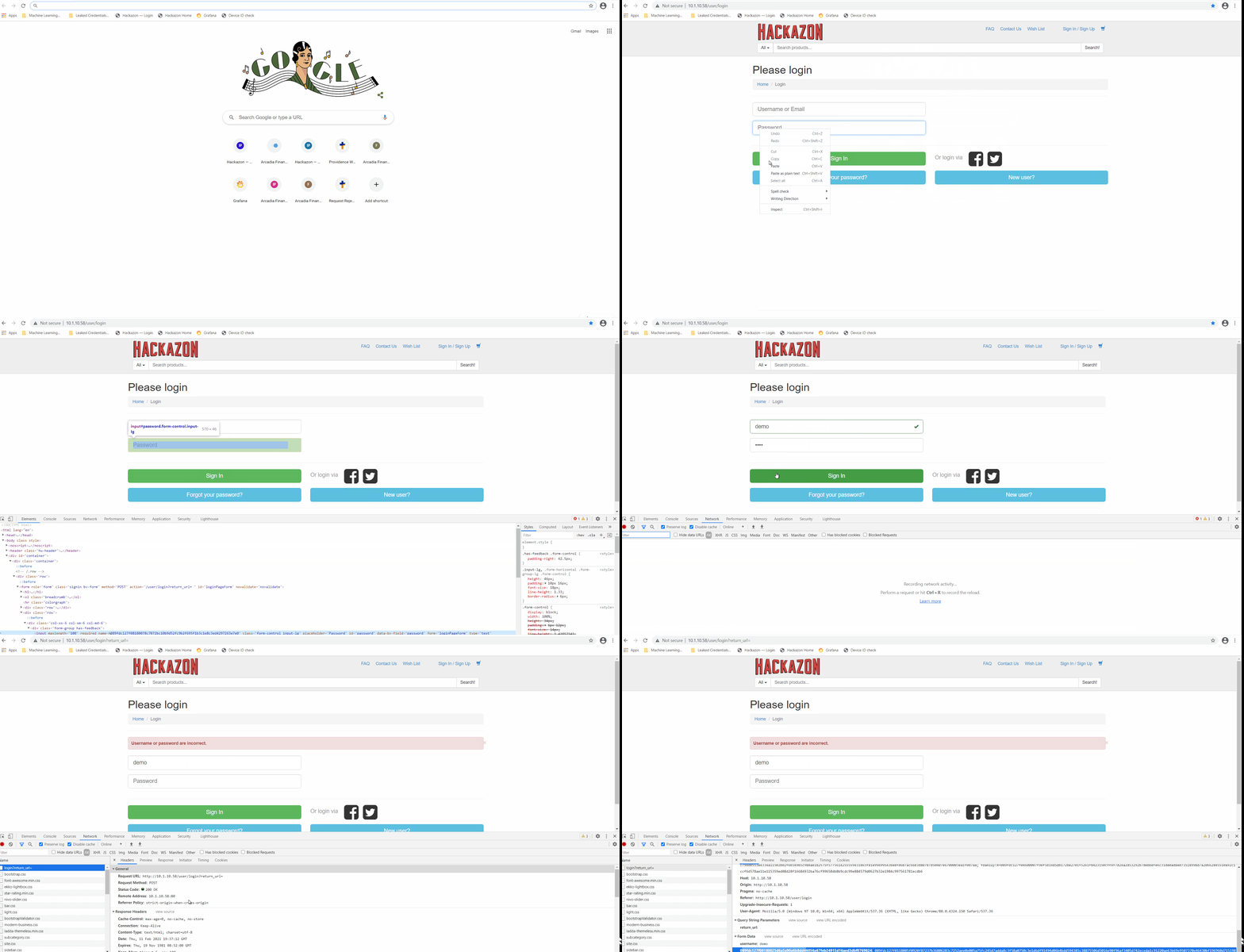
Start Chrome and click bookmark Hackazon Login or Hackazon Home
Move cursor to the password field, right click and select Inspect.
You can see obfuscation (password field name changing every 5 seconds).
Next go to tab Network in Developers tools.
Login into Hackazon with username/password as demo1 /demo1
Check encryption and obfuscation for password field.
Exercise 1 – TASK 1 - Review and Attack the Login Page
Purpose: Review Form Fields with the Developer Tools of your Browser.
Steps:
Datasafe is configured on BIG-IP named BIG-IP 16.1 - All Demos.
Login to BIG-IP via WebUI and detach the DataSafe Profile from Virtaul Server
Local Traffic ›› Virtual Servers : Virtual Server List ›› vs_Hackazon_II.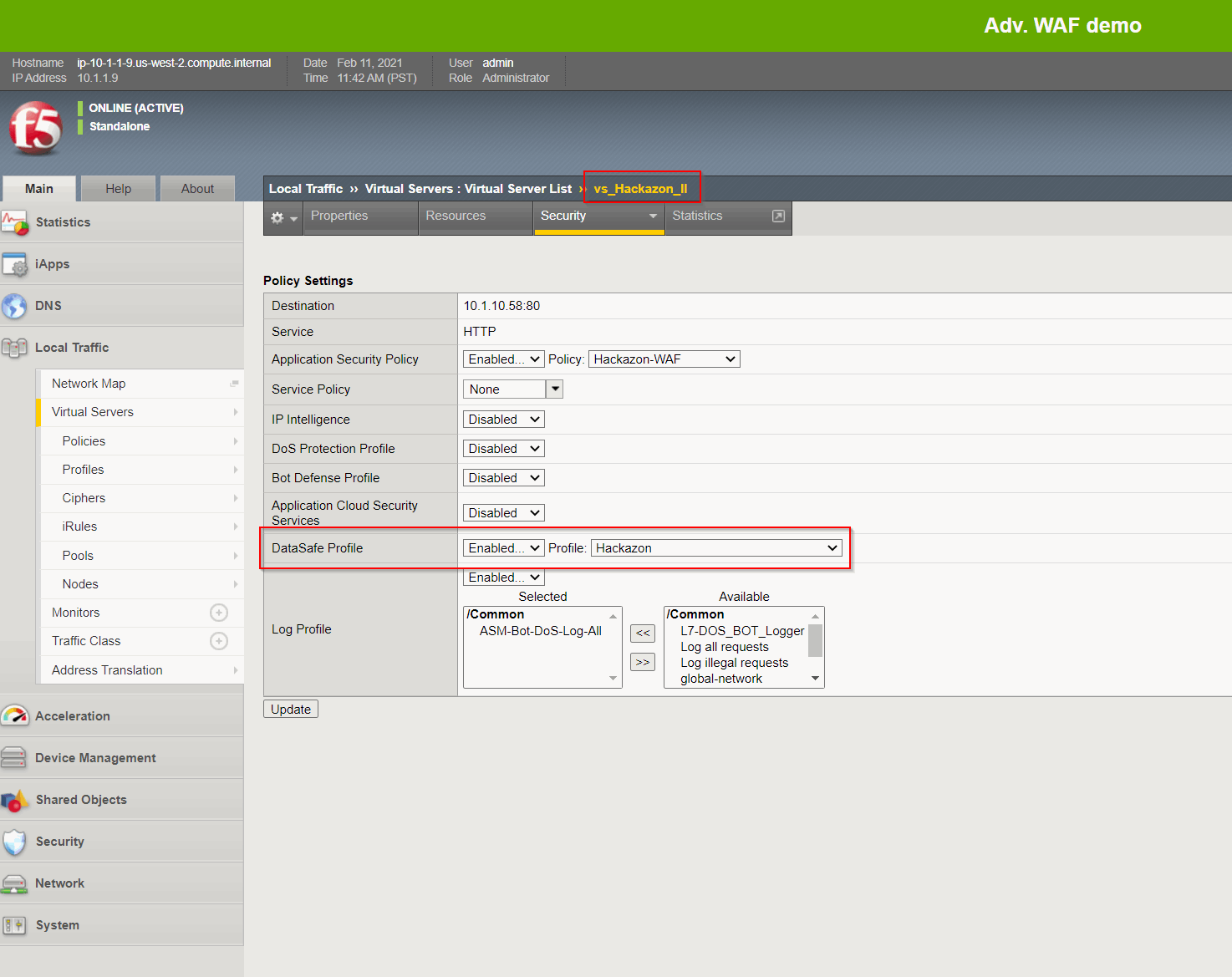
Connect to the Windows Client (win-client) via RDP (Select an appropriate screen resolution for your screen) ensuirng that you login with username/password as admin/admin (change user from default Administrator if required on the logon prompt screen).
Once connected to the Windows client, open Firefox and access Hackazon Login Bookmark.
Right-click inside the field called Username or Email and select Inspect Element. The developer tools window will open.
Question:
What is the name value for this fieldc alled Username or Email? username
Right-click inside the field called Password and select Inspect Element.
Question:
What is the name value for this field called Password? password
Note
FOOD FOR THOUGHT: How difficult would it be for malware to know which fields to grab to steal credentials from this page? How difficult would it be for an attacker to stuff credentials into these fields? They could simply put the stolen username into the “username” field and the stolen password in the “password” field.
Exercise 1 – TASK 2 - Review Methods for Stealing Credentials
Steps:
From the Windows client, in Firefox click the FPS Demo Tools Bookmark, without opening a new tab. This includes tools that behave like real malware.
On the login page of the Hackazon website enter your first name and P@ssw0rd! as password but do not click Sign In.
From the Demo Tools click Steal Password and then click on the password field.
Note
The “malware” is using JavaScript to grab the value of the password field out of the DOM (DocumentObject Model) even before the user submits it to the application.
Click OK then clear the password you entered.
From the Demo Tools click Start Keylogger and then enter the same password as earlier.
Watch the top of the Demo Tools.
The “malware” is using JavaScript to log the password as it is typed. It could also send this capture data to some malicious site.
In the developer tools window that opened previously, select the Network tab (F12), then click the trash can icon to delete the requests.
On the login page enter your first name as username and P@ssw0rd! as password and click Sign In.
Note
Your login will fail, but your credentials were still sent to the web server.
In the Network tab select the /login?return_url= entry, and then examine the Params tab.
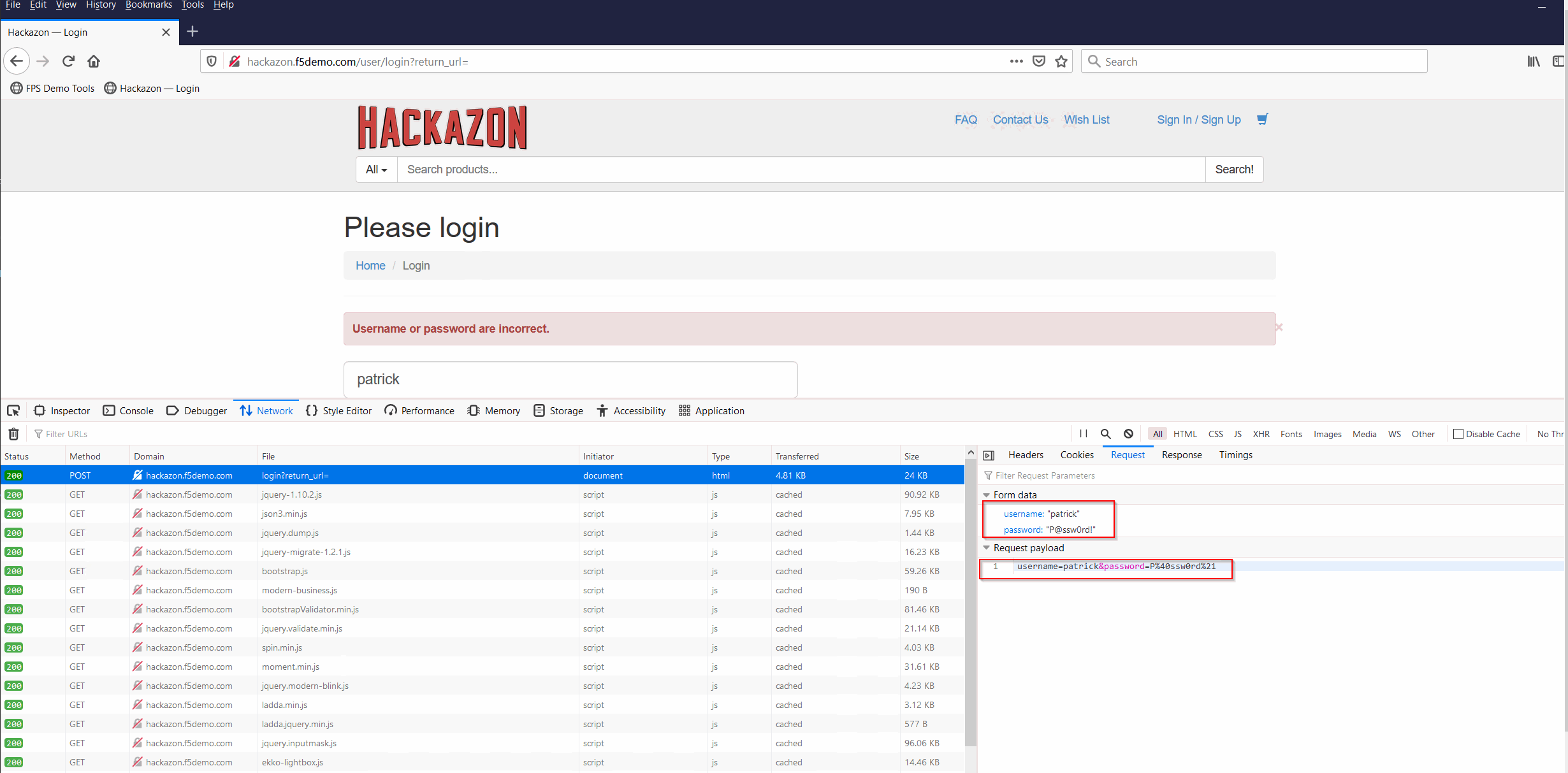
The user’s credentials are visible in clear text.
This is another way that malware can steal credentials. By “grabbing” the POST request and any data sent with it, including username and password.
Exercise 1 – TASK3 – Perform a Form Field ``Web Inject``
Steps:
Return to the Hackazon — Login page.
Note
It should NOT have ?return_url= at the end of the URL in the address bar.
Right-click inside the Username or Email field and select Inspect Element again.
Right-click on the blue highlighted text in the developer tools window that opens and select Edit as HTML.
Select all the text in the window and type Ctrl+C to copy the text.
Click after the end of data-bv-field=”username”> and type <br>, and then press the Enter key twice.
Type Ctrl+V to paste the copied text.
For the new pasted entry, change the name, id, and data-by-field values to mobile, and change the placeholder value to Mobile Phone Number.
Click outside of the edit box and examine the Hackazon login page.
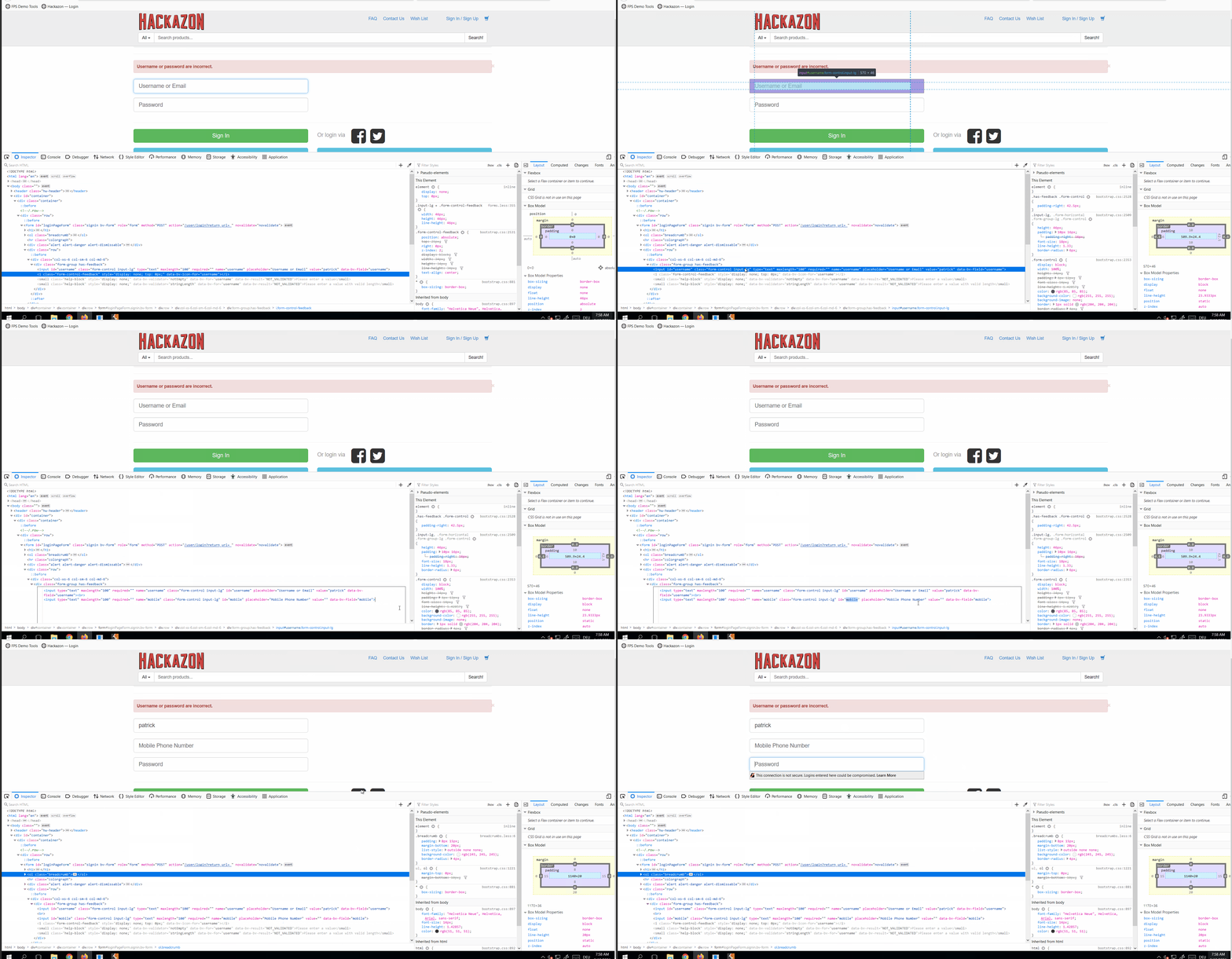
Note
This is an example of the type of “web injects” that malware can perform to collect additional information. This same technique could be used to remove text or form fields. Note that this was done on the client side, in the browser, without any requests being sent to the server. The web application and any security infrastructure protecting it would have no idea this is happening in the browser.
Close Firefox.
Exercise 2 – TASK1 – Review and Configure DataSafe Components
Within the exercise we will cover DataSafe Licensing and Provisioning.
Steps:
Datasafe is configured on BIG-IP named BIG-IP 16.1 - All Demos.
In the Configuration Utility of the BIG-IP (connect via Chrome Bookmark or launch https://10.1.1.9/tmui/login.jsp ).
The Password of the BIG-IP instance is listed within the
Details / DocumentationTab.
Note
DataSafe is NOT included in the Best Bundle but DataSafe IS INCLUDED in Advanced WAF.
Open the System > Resource Provisioning page
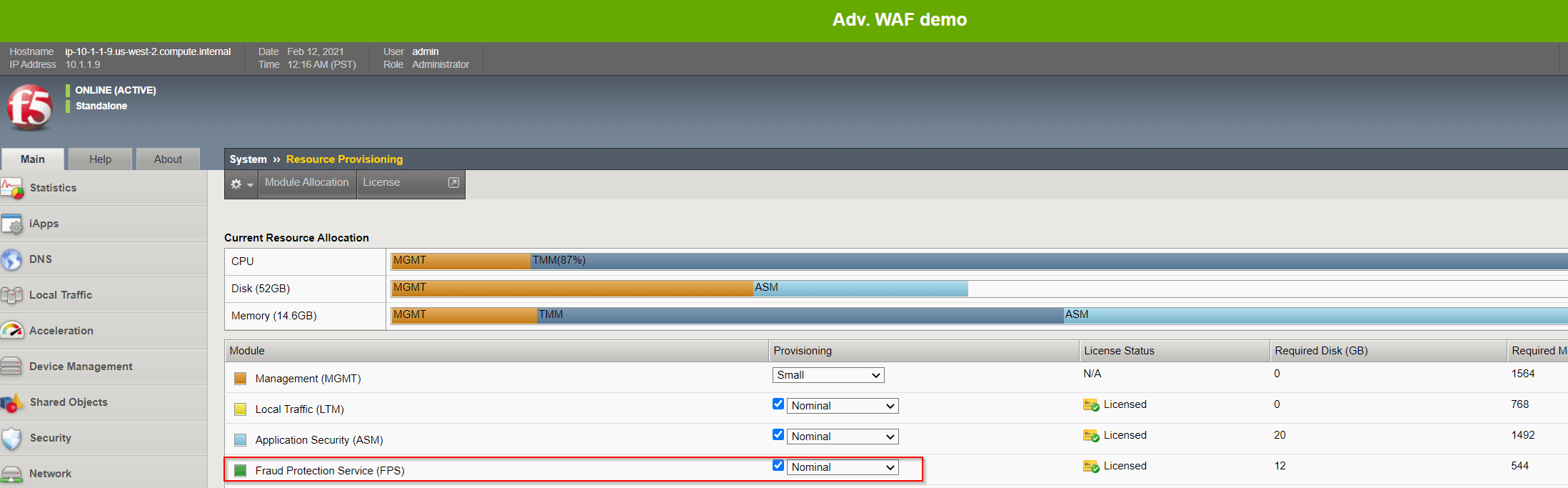
Exercise 2 – TASK2 – DataSafe Configuration
Steps:
Open the Security > Data Protection > DataSafe Profiles page on the BIG-IP and click Create.
For Profile Name enter Hackazon-DS.
Note
If the Hackazon-DS profile already exists, please delete and follow instructions here.
For Local Syslog Publisher, select local-datasafe (select the checkbox on the right side to enable.
Optional: The local-datasafe Publisher can be viewed at System -> Logs -> Configuration -> Log Publishers.
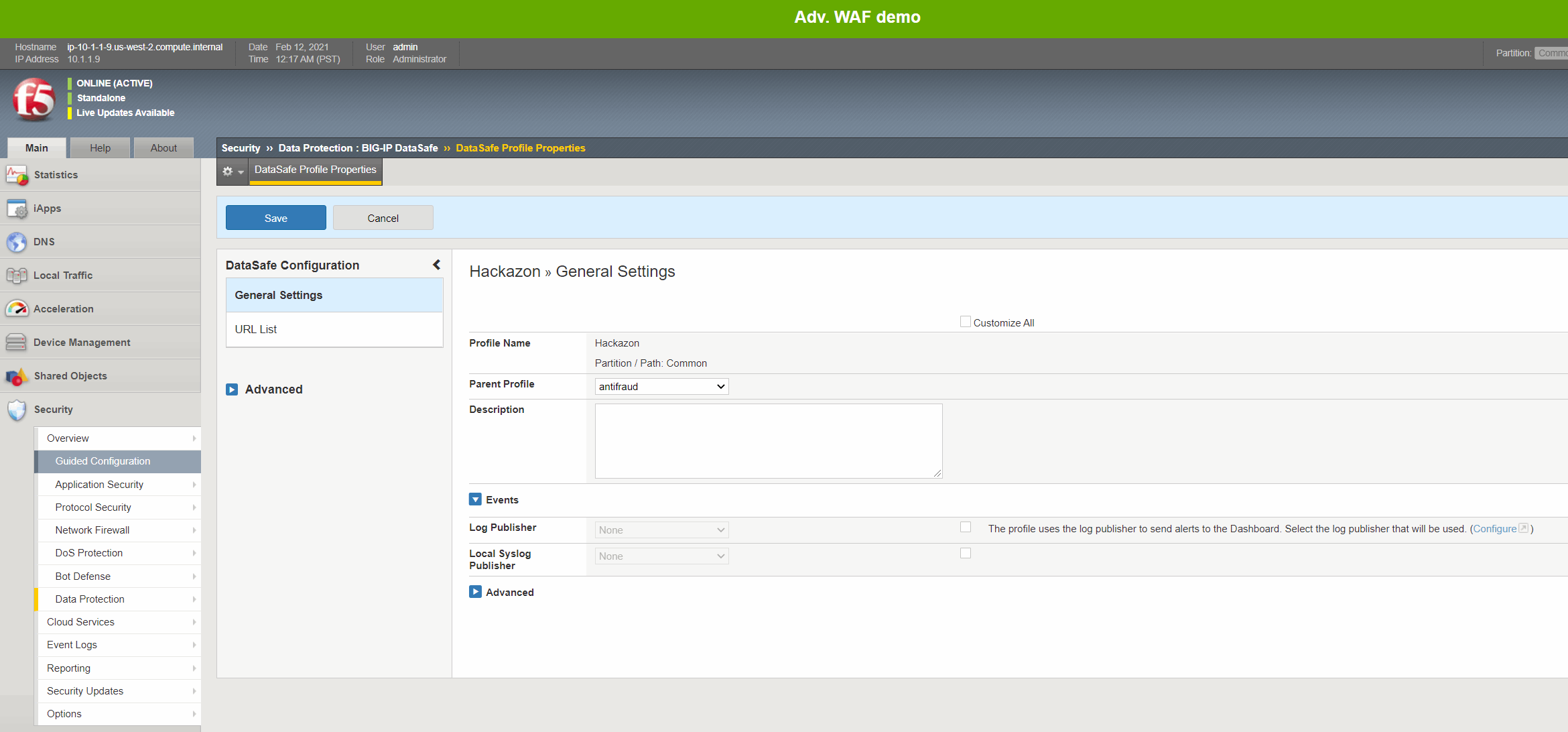
Click in Advanced and review all other options Data Safe will serve different Javascript files under those configured HTTP paths.
On the left menu click URL List, and then click Add URL.
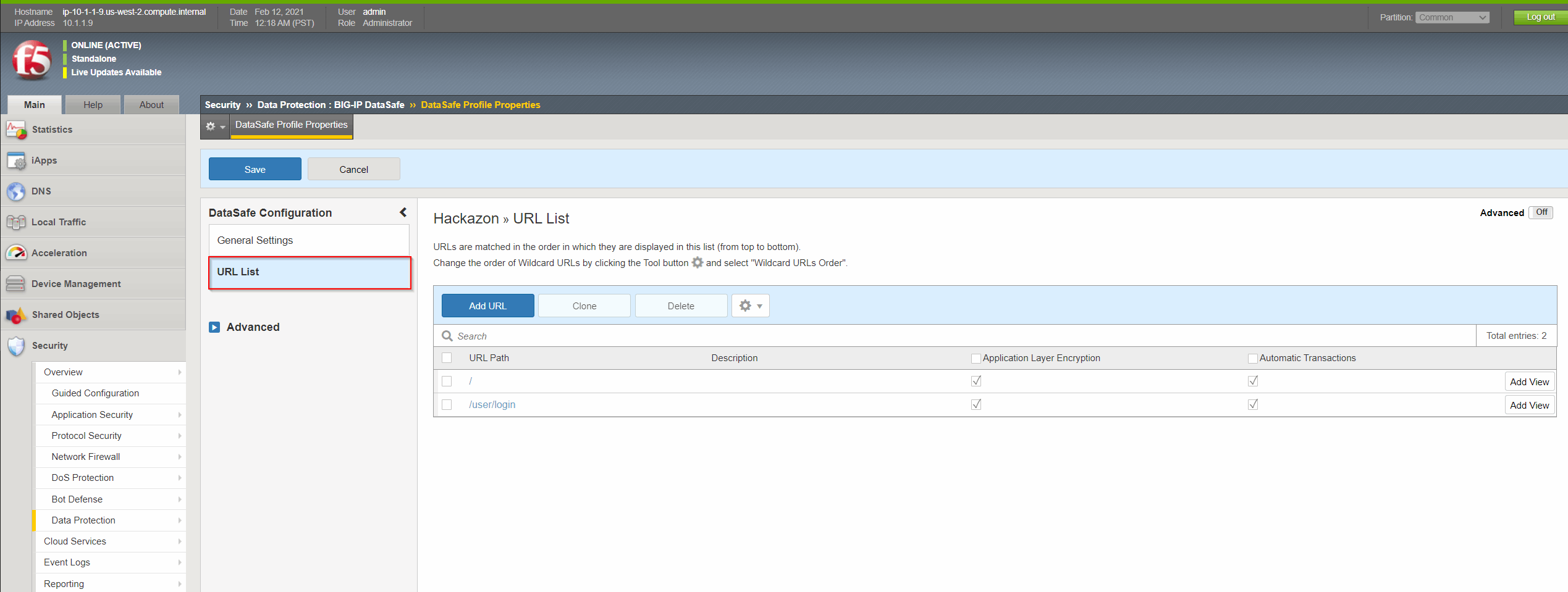
For URL Path leave Explicit selected, and type /user/login.
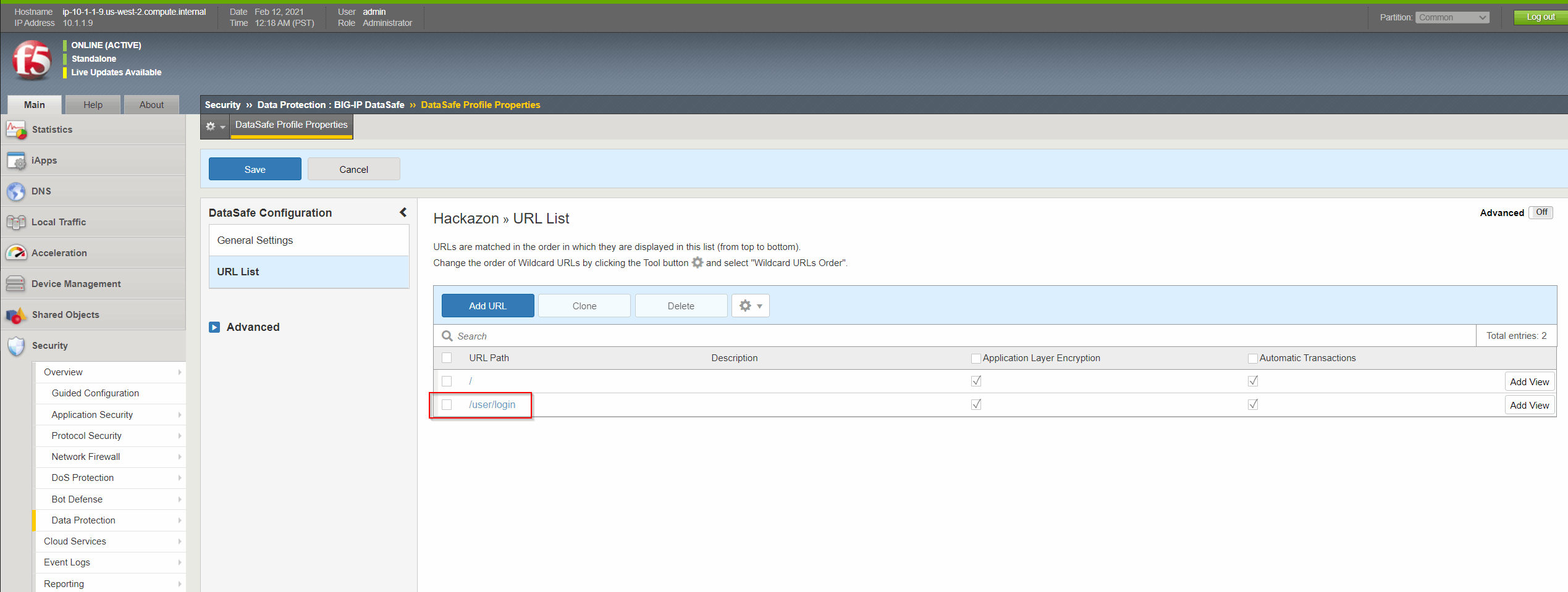
Click in Advanced and review all other options. Various configurations refer to where Data Safe will inject its Javascript.
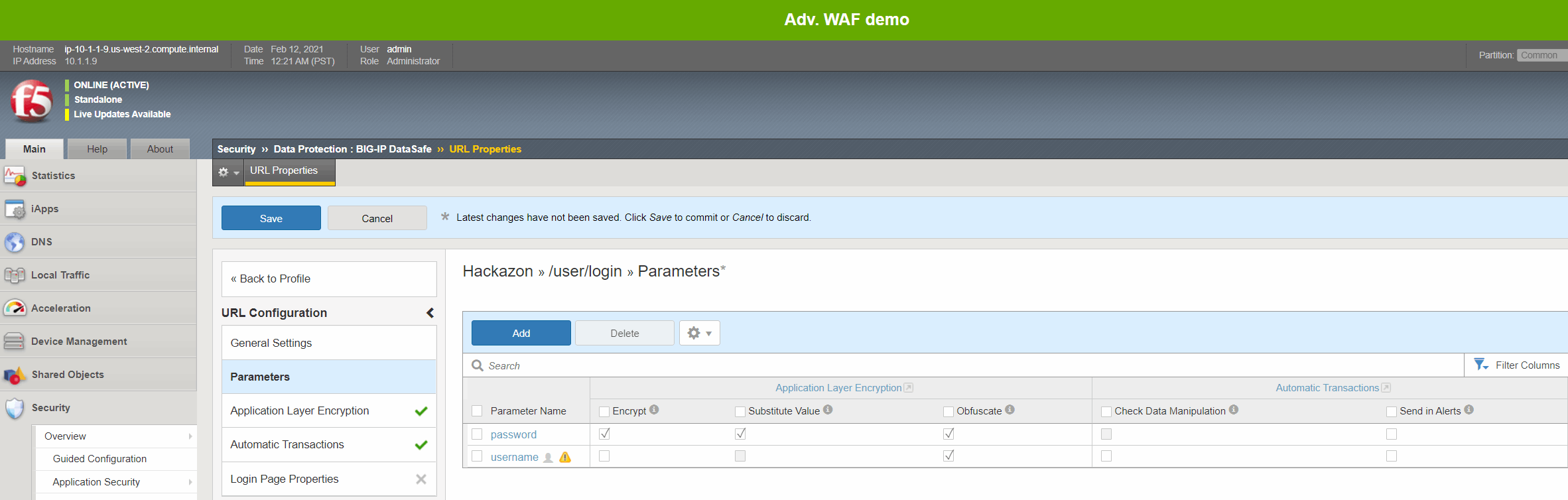
From the left panel open the Parameters page. Remember from earlier you found that the username and password parameter names are username and password.
Click Add, enter a new parameter named username, select Identify as Username and then click Repeat.
Create a second parameter named password, and then click Create.
For the username parameter select the Obfuscation checkbox.
For the password parameter select the Encrypt, Substitute Value, and Obfuscate checkboxes.
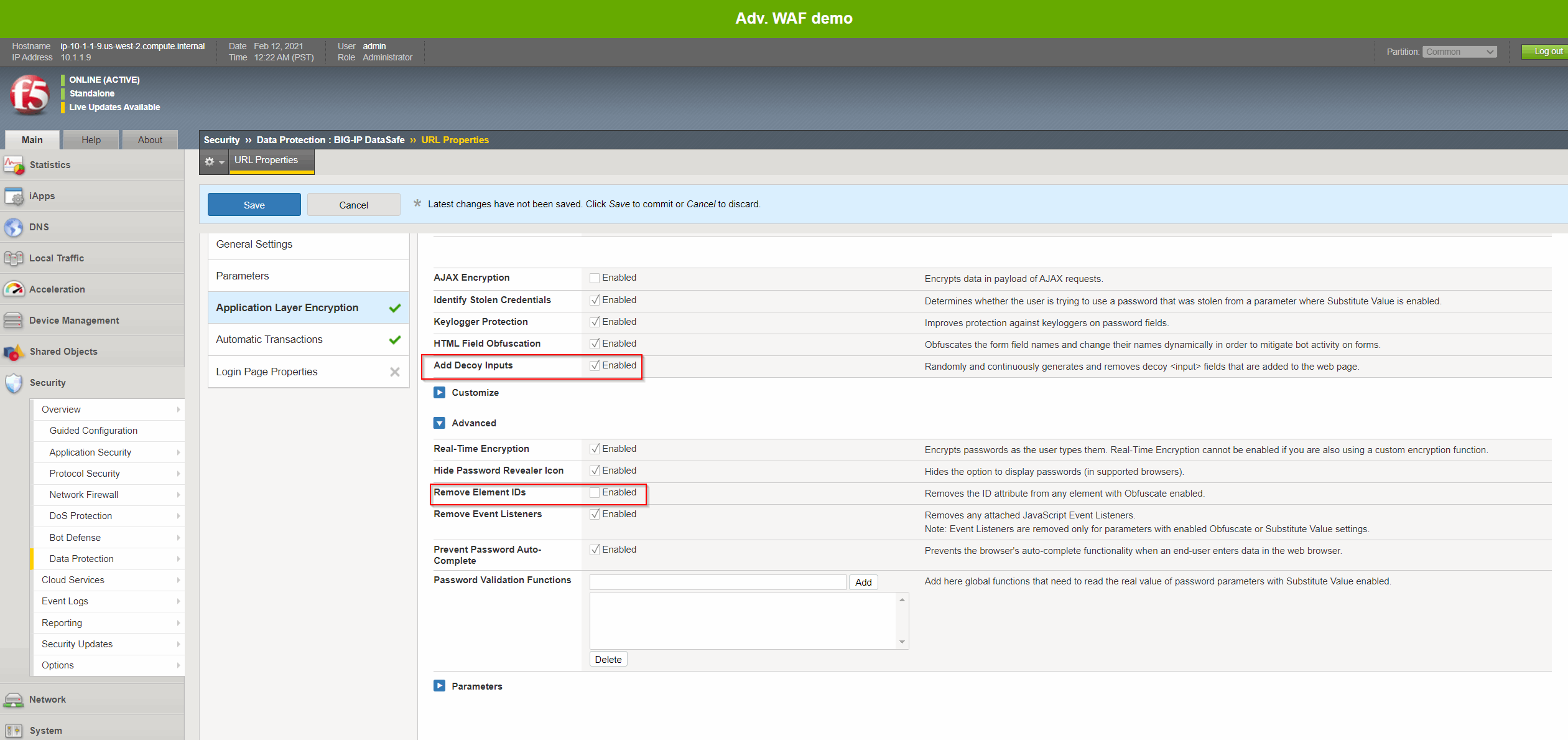
From the left menu open the Application Layer Encryption page.
Note
Notice that most features are enabled by default.
Review the explanations for the different features.
Select the Add Decoy Inputs checkbox
Expand the Advanced section and select Remove Element IDs checkbox, and then click Save.
Click Save to save the new profile
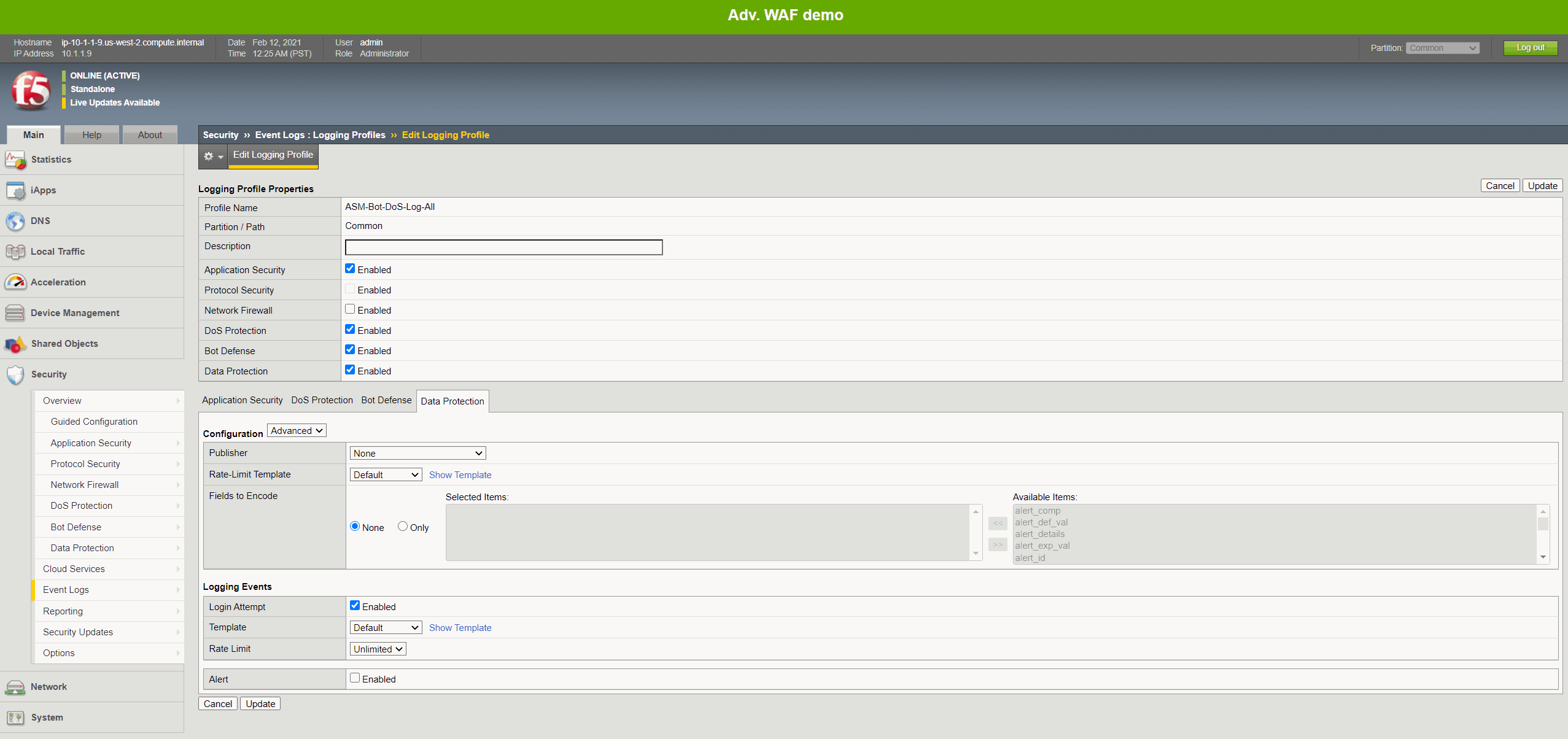
Navigate to Security ›› Event Logs : Logging Profiles and select the ‘ASM-Bot-DoS-Log-All’ log profile.
Ensure Data Protection is enabled.
Once enabled, click on the Data Protection tab and ensure the local-datasafe is selected from the dropdown of the Publisher section.
Enable Login Attempt and select the default template. Click Update.
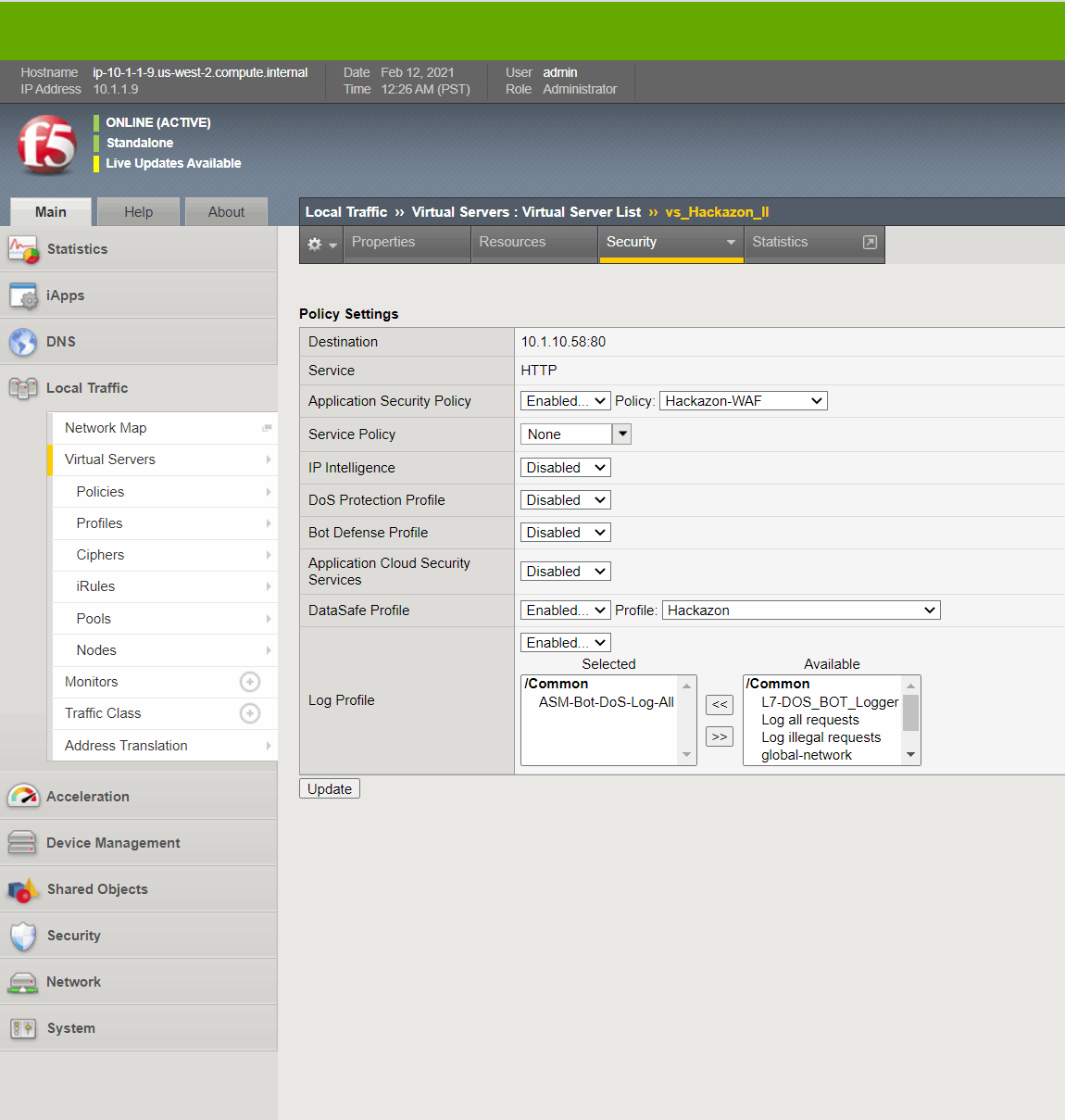
Navigate to Local Traffic ›› Virtual Servers ›› Virtual Server List page and click Hackazon_protected_virtual, and then open the virtual server Security > Policies page.
From the DataSafe Profile list select Enabled.
From the adjacent Profile list box that appears, select Hackazon-DS, and then click Update.
Note
The ‘ASM-Bot-DoS-Log-All’ log profile will be applied already.
Exercise 3 – TASK1 – Testing DataSafe Protection
Review the Protected Hackazon Login Page
Steps:
From your Windows client, open a private Firefox window and access http://hackazon.f5demo.com/user/login.
Right-click inside the Password field and select Inspect Element.
Question:
What is the name value for this field?

Obfuscation - Notice that the name of the password field (outlined in red) is now a long cryptic name and is changing every second. The same is true of the username field. Perform the same for the username field.
Add Decoy Inputs – Notice that there are other random inputs being added (outlined in green). The number and order of these inputs is changing frequently.
Note
FOOD FOR THOUGHT: Considering this obfuscation, do you think DataSafe could protect the login page from a credential stuffing or a regular brute force?
In the developer tools window select the Network tab, then click the trash can icon to delete any current requests.
On the login page enter your first name as username and P@ssw0rd! as password and click Sign In.
In the Network tab select the /login?return_url= entry, and then examine the Params tab.
Question:
What parameters were submitted? Random
Do you see a username or password field? Not really
Do you see the username you submitted? Yes
Obfuscation – DataSafe obfuscates the names of the parameters when they are submitted in a login request.
Encryption – DataSafe encrypted the value of the password field so that it is not a readable value in the login request.